Drawing Floor
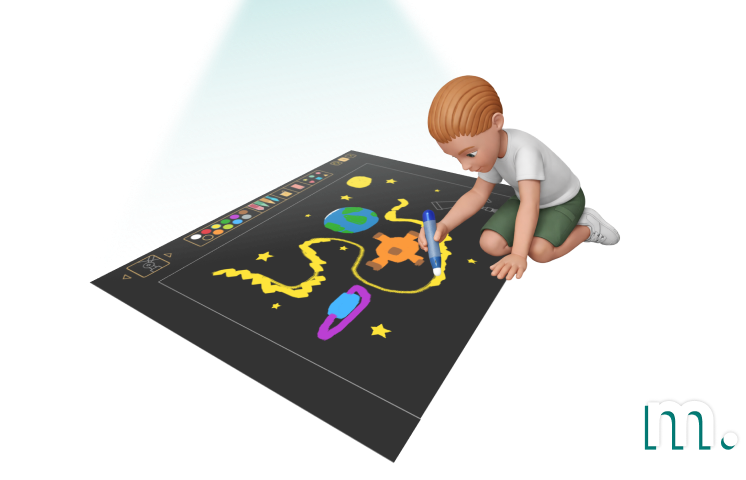
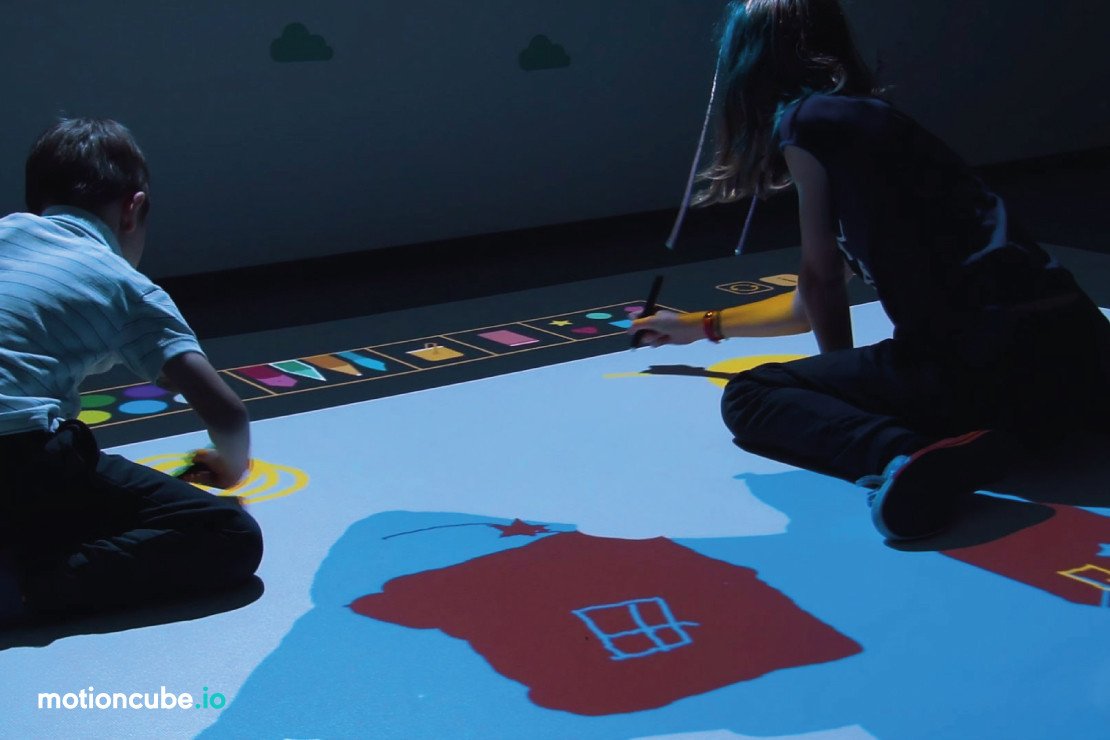
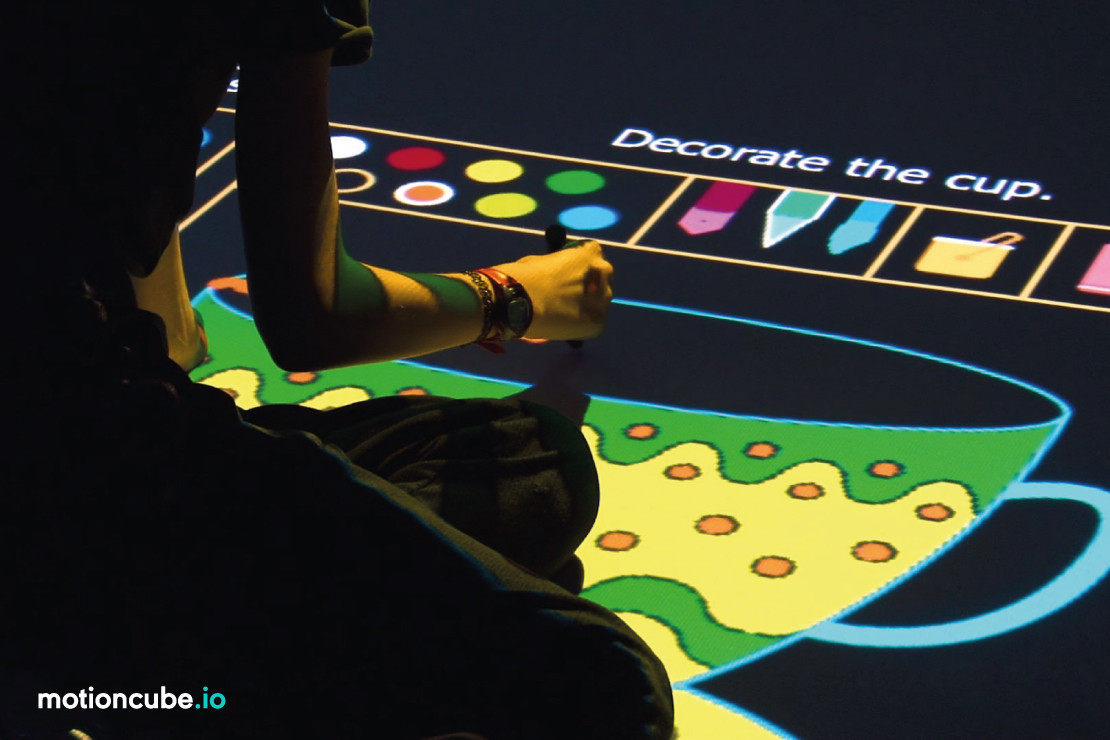
Turn the floor into a giant interactive whiteboard. Children draw, colour, trace and write with IR pens directly on the projected surface — as naturally as on paper, but in a shared space designed for their scale. Ready-to-use educational content covering early school curriculum areas.

IR Pen drawing
Write and draw like on paper
55+ applications
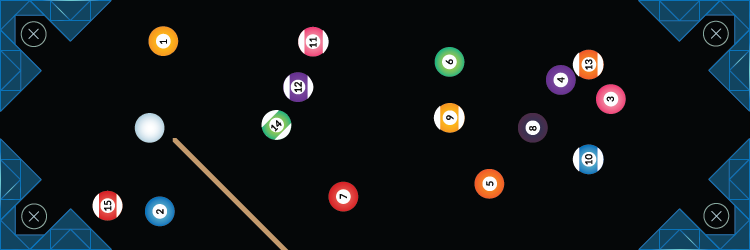
Drawing, exercises, board & ball games
Multiple workspaces
Up to 3 children draw at once
Early education
Graphomotor, maths, logic, creativity
Deployment Location
Kindergartens, preschools, primary schools, therapy rooms, after-school clubs, community centres, libraries.
Target User Group
Preschool and early school children (ages 3–10). Guided by teachers, therapists and educators during structured or free-play sessions.
Use Scenarios
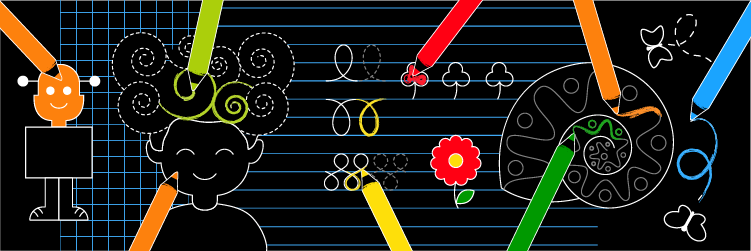
Graphomotor exercises, letter and digit writing, drawing and colouring, pattern tracing, symmetry and spatial tasks, math and logic activities, board games and ball games on the floor.
Interaction Method
IR pens — children draw directly on the projected surface. The pen tip emits infrared light tracked by the camera, enabling precise writing, colouring and object selection.
Interaction Surface
Floor surface. The projection becomes a workspace — like a digital sheet of paper at child scale. The surface can be split into multiple independent workspaces.
What Motioncube can make with IR pens
The IR pen emits infrared light detected by a camera above the floor. Children interact with the projected image naturally — like drawing on paper, but on a large shared digital surface.

Selecting
Tap objects on the projection to choose answers, pick colours, open menus or trigger game actions.

Drawing / Painting
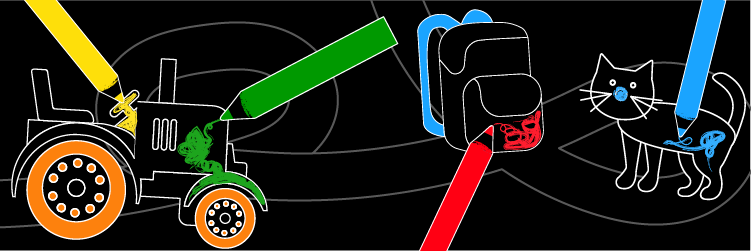
Draw freely, colour pictures and create artwork directly on the projected floor surface.

Writing
Practise letters, digits and shapes — graphomotor exercises on the floor like on a giant interactive worksheet.

Pushing / Steering
Push and steer virtual objects — balls, vehicles and characters — across the floor to reach targets.
Content included:
4 Application Collections
The core of this solution are two drawing collections: Creative Kids Academy (40 educational apps across 5 curriculum areas) and The Drawing Adventure Around the World (15 thematic colouring apps with 150 large boards). Both are controlled with IR pens — children draw, colour and write directly on the projected surface.
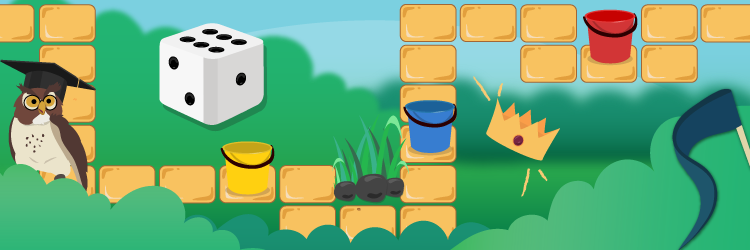
The pack also includes Pawns In Action (4 classic board games) and Balls & Goals (4 arcade ball games) — adding variety with competitive play and team activities, all pen-controlled on the floor.
How to build a drawing floor
Mount a projector and an IR camera above the floor, connect them to a PC running Motioncube Player and hand out the IR pens. The system tracks the pen’s infrared light on the projection surface, enabling precise drawing and writing — just like on a sheet of paper.
Mount projector
Install a projector on the ceiling or wall mount, pointing down at the floor. This creates the projected workspace children will draw on.
Mount IR camera
Place the IR camera next to the projector, tracking the floor surface. It detects the infrared light emitted by the pen tips.
Connect & install
Connect both to a PC via HDMI and USB. Install Motioncube Player and activate the IR pen interaction module.
Calibrate & draw
Calibrate the projection area, hand out IR pens and start. Children can draw, colour and write on the floor immediately.
Step-by-step setup
Two ways to build a drawing floor: the fastest route with an Epson projector and its bundled pens, or a manually calibrated projector with a depth sensor that runs motion and IR pen games in one setup.
Fastest route — Epson projector with pens
EPSON EB-760Wi projector (two pens and a dedicated stand) · Motioncube Lite · Creative Kids Academy games
2-in-1 — motion and IR pen games in one setup
Short throw projector on a tripod · Orbbec Astra 2 on a tripod · table or floor surface · mini PC with Windows · Motioncube Player (Beam)
Recorded on a table, but the floor configuration is identical — the projector and the sensor simply face the floor instead of the tabletop.
See it in use
Real installations. Click any photo to enlarge.

What's included?
Motioncube Player
Software for running interactive projections with IR pen interaction module. Supports workspace splitting for multiple simultaneous users.
4 collections — 55+ apps
Creative Kids Academy (40 apps), Drawing Adventure (15 apps), Pawns In Action (4 board games), Balls & Goals (4 arcade games).
Demo License
For internal demos and client presentations.
White-label option
Add your brand to the software interface.
Mobile app
Control the drawing floor from a phone or tablet — switch apps, manage workspaces and settings.
Technical & marketing support
Technical documentation, direct contact with the Motioncube support team, and starter marketing assets.
Technical specification
What you need to source and how to install it — hardware, mounting conditions and licensing.
| Projector | Resolution 1280×800 or higher. Brightness 3500–4000 lm depending on room lighting. Short-throw recommended for lower ceilings. |
| IR Camera | An infrared camera mounted next to the projector, tracking the floor surface to detect the IR light from pen tips. |
| IR Pens | Infrared light pens. The pen tip emits IR light when pressed to the surface, enabling precise drawing, writing and selection. Choose form factors suited to the floor working position. |
| Computer | Windows 11, Intel i3, 8 GB RAM, SSD 256 GB or compatible mini PC with HDMI and USB ports. |
| Mounting system | Ceiling mount or wall-arm for the projector and camera, pointing down at the floor. |
| Mounting scheme | Projector and IR camera mounted above the floor (ceiling or wall-arm), connected to the PC via HDMI and USB respectively. |
| Mounting height | Depends on the projector throw ratio. Typically 2.5–3.5 m above the floor. Short-throw models can be mounted lower. |
| Workspace splitting | The projection can be split into multiple independent workspaces (up to 3 in Creative Kids Academy) so several children can draw simultaneously, each with their own board and pen. |
| Floor surface | Any smooth, light-coloured floor or carpet. Children sit or kneel on the floor and draw on the projected surface. Avoid dark or highly reflective surfaces. |
| Lighting | For best contrast, dim or switch off lights directly above the projection area. Indirect room lighting is acceptable. |
| License type | Single-station, perpetual. |
| Single installations | Are you delivering a single project and need a license for one installation? Simply purchase the required product directly from the Motioncube Store at full price. |
| Multiple deployments | Are you planning multiple deployments and need licenses for several installations? Take advantage of our integrator offer. After ordering the first five licenses, you will receive an additional presentation license free of charge, intended for use on a demo or showroom setup. |
| Additional revenue | Commission from the sale of additional content. Offer your clients extra Motioncube applications, which you can settle with us at a discounted price compared to the store price. More details are available in the integrator cooperation terms. |
Choose the right option for your project
Building a single installation? Buy individual collections from our store. Planning repeatable deployments? Choose an Integrator Pack with volume pricing and ready‑to‑deploy bundles.
Single installation
Purchase individual drawing collections from our store — choose the ones that fit your curriculum needs.
- Buy exactly what you need
- Retail pricing, no minimum order
- Perpetual licence per workstation
- Motioncube Player included free
Creative Drawing Floor
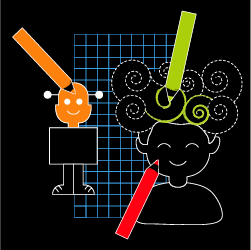
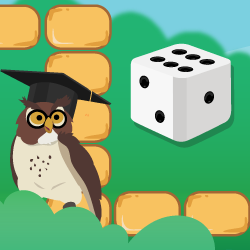
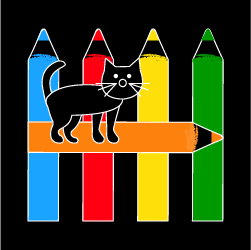
Creative and educational apps for drawing, writing and colouring, as well as board games operated with IR pens.
Hardware not included — source your own or work with a partner for turnkey installation.
Manage Consents
Control which external services can process your data.
Essential Required
These features are essential for the proper functioning of the website and cannot be disabled.
Anonymous Analytics Required
Required for collecting aggregated statistics that help us understand how users interact with our site. Data is fully anonymous, contains no personal information, and we do not use cookies.
Extended Analytics
Allows analyzing traffic sources (where you came from), marketing campaign parameters (UTM), and navigation paths across subdomains. We use a cookie (7 days) to preserve this data.
External Media
Allows loading content from external services like YouTube or Vimeo.
