Coding Learning at Schools
Bring coding education to the classroom – no in-house software development required. We provide ready-to-deploy coding courses for interactive whiteboards and student PCs, covering visual programming, algorithmics and computational thinking for ages 5–14.

Touch & keyboard apps
Run on whiteboards, PCs and tablets
Structured courses
Graded difficulty from age 5 to 14
Visual programming
Intuitive picture blocks & arrow codes
2 000+ coding boards
From beginner to advanced challenges
How to use coding apps in the classroom
Motioncube coding applications run on interactive whiteboards, touch screens and student PCs. Choose the setup that fits your classroom — or combine them for a complete coding lab.
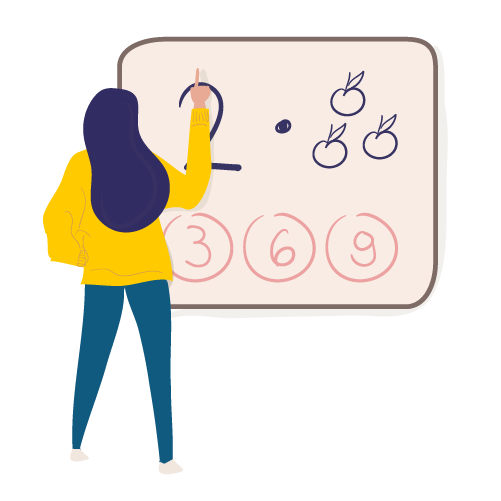
Interactive whiteboards
Display coding boards on the classroom whiteboard. Students interact using touch or interactive pens. Ideal for whole-class instruction and collaborative problem solving.
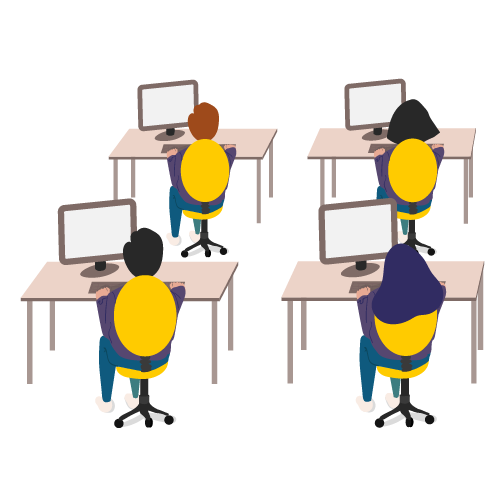
Student PC workstations
Each student works individually at their desk, solving algorithmic problems with keyboard, mouse or touch. Multi-seat licences cover up to 24 workstations.
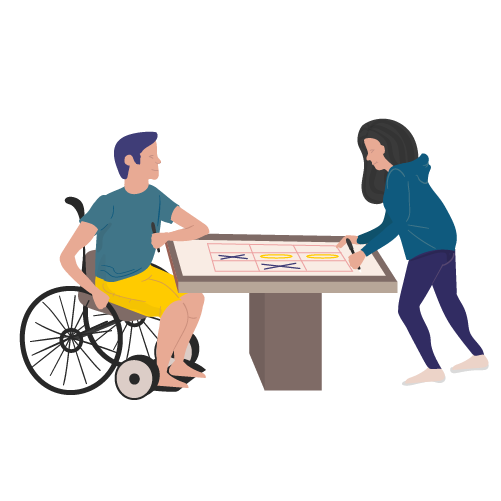
Touch tables
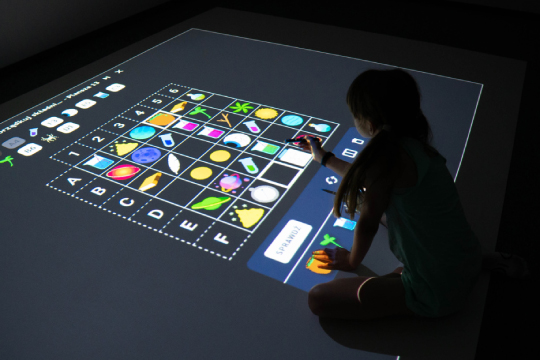
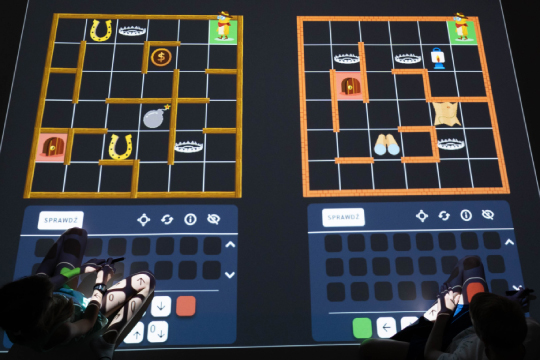
Small groups gather around a touch table and code together. Split the screen into multiple boards so teams can work side by side on the same device.
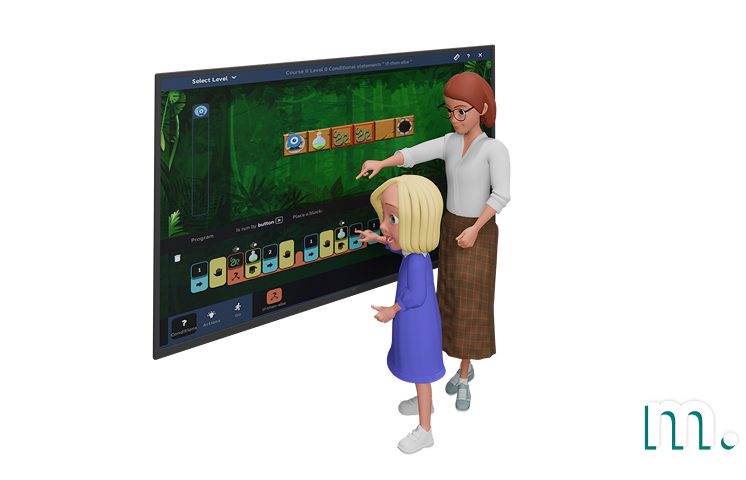
Deployment Location
School classrooms, computer labs, school libraries, after-school clubs, educational centres, coding workshops.
Target User Group
Students aged 5–14. From kindergarten coding beginners learning patterns and sequences to primary school students building complex algorithms with loops, variables and functions.
Use Scenarios
Coding lessons on interactive whiteboards, individual practice at student PCs, team coding challenges, self-paced learning, homework assignments, coding clubs and competitions.
Interaction Method
Touch screen, interactive pen, keyboard & mouse — applications adapt to the available control method.
Supported Devices
Interactive whiteboards, touch screen monitors, desktop PCs, laptops and tablets running Windows 10/11.
Coding courses & applications included
The integrator pack includes structured coding courses, algorithmic games and visual programming tools — covering the full spectrum from beginner pattern recognition to advanced concurrent programming.

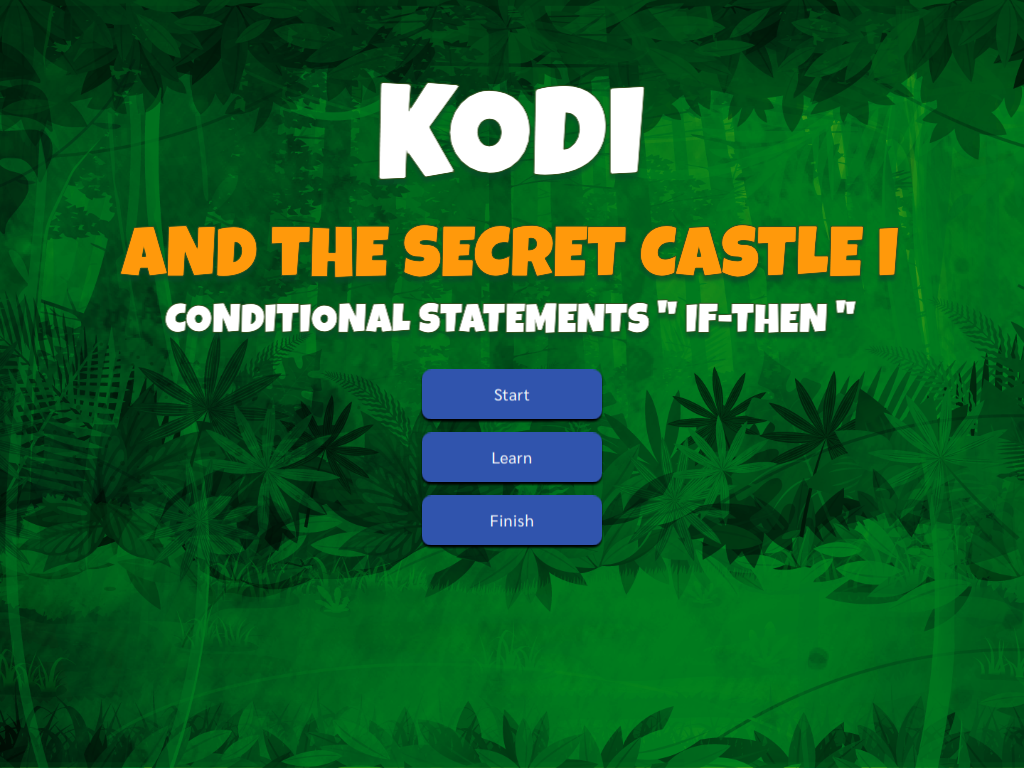
Kodi and the Secret Castle
An advanced 3-part algorithmics course with 25 applications and over 422 programmable boards. Students programme characters through the castle, mastering loops, variables, functions and even concurrent programming — controlling up to 3 heroes simultaneously.
- 25 applications, 422 coding boards
- Age 7+ — beginner to advanced
- Sequential & concurrent programming
- Built-in tutorials & solution boards

Code with Ava
Join Ava on a journey through the Funn Galaxy! 54 interactive applications across 7 thematic sections with over 1 633 coding boards. From graphical coding and encrypted routes to garden paths, word coding and coordinates — each section builds on the previous one.
- 54 applications, 1 633 boards
- Age 5+ — 7 thematic sections
- Grid-based coding (3×3 to 10×10)
- Split screen for pair work
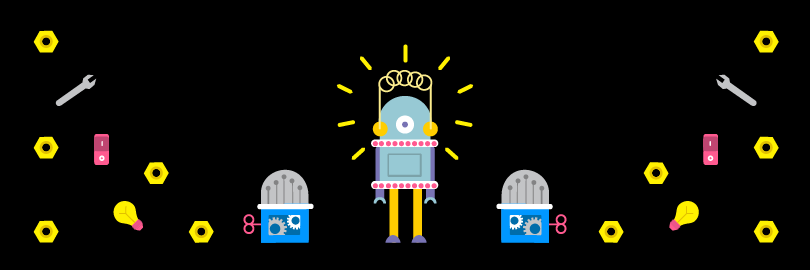
Dot Bot
Help Robot Bot reach his goal! 5 coding games with 85 interactive boards. Write code from arrows, create routes, solve Sokoban-style puzzles and learn the basics of programming through playful missions with a friendly robot character.
- 5 games, 85 coding boards
- Age 5–10 — perfect starting point
- Endless procedurally generated mazes
- Automatic loop detection
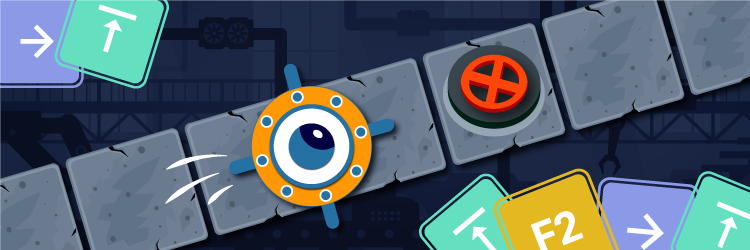
Go Lumi! Coding on the screen
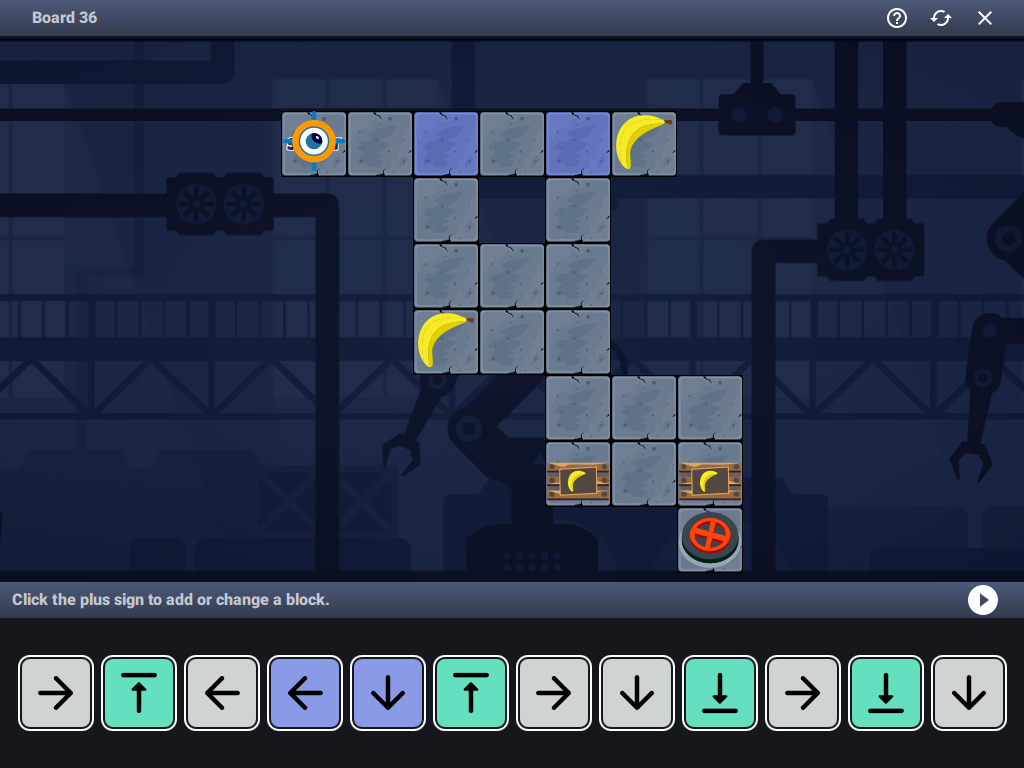
Programme Lumi the robot worker using intuitive picture blocks! 110 levels across 11 structured coding lessons covering navigation, conditional fields, loops and functions. Step–by–step difficulty — each level adds exactly one new concept.
- 110 levels, 11 coding lessons
- Age 7–14 — self-paced learning
- Picture block instructions (no typing)
- Ready-made lesson scenarios for teachers
How classroom interaction works
Coding applications are designed for touch interaction, but work equally well with a keyboard and mouse. Use the right input method for the device and learning scenario.

Touch on the board
Tap, drag and interact directly on the interactive whiteboard or touch screen monitor.

Interactive pen
Use IR pens for precise interaction — ideal for coding boards with grids and small elements.

Keyboard & mouse
Students work at their own desks using keyboard and mouse — the standard setup for PC workstations.
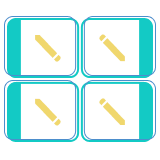
Split screen
Divide the screen into up to 4 independent boards. Teams or pairs solve challenges side by side.
Why coding matters — and what students gain
Coding teaches far more than programming syntax. Through interactive challenges, students develop logical thinking, problem-solving skills and creative confidence that serve them across every subject.
How to set up a coding classroom
Install Motioncube Player on your interactive whiteboards and student PCs, activate the licences and start teaching. No projectors or cameras required — just standard classroom hardware.
Prepare devices
Get PCs running Windows 10/11 for student workstations and/or an interactive whiteboard for the classroom.
Install & activate
Download and install Motioncube Player on each device. Activate the licence key — single-seat or multi-seat (up to 24).
Choose content
Select coding collections appropriate for the age group and curriculum. Start with Dot Bot for younger students or Kodi for advanced.
Teach & learn
Launch the applications. Students code, solve problems and build algorithms. Use the provided lesson scenarios and guides.
See it in action
Real installations. Click any photo to enlarge.
What's included?
Motioncube Player
Software for running interactive applications on PCs, interactive whiteboards and touch screens. Single-seat and multi-seat licences available.
Comprehensive coding content
Kodi and the Secret Castle, Code with Ava, Dot Bot, Go Lumi and additional logic & strategy collections — all adapted for touch screen and PC interaction.
Demo License
For internal demos and client presentations.
Multi-seat licensing
Single-seat licences for individual boards and 24-seat licences for entire computer labs. Perpetual, no subscription.
Teacher resources
Lesson scenarios, application guides and downloadable PDFs. Ready-made materials for classroom use — just print and teach.
Technical & marketing support
Technical documentation, direct contact with the Motioncube support team, and starter marketing assets.
Technical specification
What you need to source and how to install it — hardware, mounting conditions and licensing.
| Computer | Windows 10/11, Intel i3 or equivalent, 8 GB RAM, SSD 256 GB with USB port and display output (HDMI/DP). |
| Display | Interactive whiteboard, touch screen monitor, or standard monitor. Any resolution from 1024×768 upwards. |
| Input devices | Touch screen, interactive pen (IR), keyboard and/or mouse. Applications adapt to the available control method. |
| Network | Internet connection required for initial activation and content download. Offline use supported after activation. |
| Software version | Motioncube Player — latest version. Free download from the Motioncube website. |
| Installation | Install Motioncube Player on each workstation. No additional hardware (projectors, cameras) is required for the PC/touch variant. |
| Control methods | Touch screen (tap, drag), interactive pen (precise interaction on grids), keyboard and mouse (standard PC operation). |
| Workspace splitting | Divide the screen into 2–4 independent coding boards. Ideal for group work and pair programming on shared screens. |
| Age & difficulty | Kindergarten (5+): Dot Bot, Code with Ava. Primary school (7+): Go Lumi, Code with Ava. Upper primary (10+): Kodi and the Secret Castle. |
| Classroom scenarios | Whole-class instruction on the whiteboard, individual PC practice, pair/team work using split screen, self-paced learning and coding competitions. |
| License type | Perpetual. Single-seat (1 workstation) or multi-seat (up to 24 workstations) depending on product. |
| Single installations | Are you delivering a single project and need a license for one installation? Simply purchase the required product directly from the Motioncube Store at full price. |
| Multiple deployments | Are you planning multiple deployments and need licenses for several installations? Take advantage of our integrator offer. After ordering the first five licenses, you will receive an additional presentation license free of charge, intended for use on a demo or showroom setup. |
| Additional revenue | Commission from the sale of additional content. Offer your clients extra Motioncube applications, which you can settle with us at a discounted price compared to the store price. More details are available in the integrator cooperation terms. |
Choose the right option for your project
Building a single classroom setup? Buy individual apps from our store. Planning deployments for multiple schools? Choose the Integrator Pack with volume pricing and ready‑to‑deploy bundles.
Single installation
Purchase individual coding collections and applications from our store — ideal for one-off projects or a single classroom.
- Buy exactly what you need
- Retail pricing, no minimum order
- Perpetual licence per workstation
- Motioncube Player included free
Coding Learning for Schools - PCs/Touch
Strategy, algorithmic and logical applications for school-age children where operated with a mouse or touch for individu...


Hardware not included — use existing school PCs and interactive whiteboards, or work with a partner for complete classroom setups.
Manage Consents
Control which external services can process your data.
Essential Required
These features are essential for the proper functioning of the website and cannot be disabled.
Anonymous Analytics Required
Required for collecting aggregated statistics that help us understand how users interact with our site. Data is fully anonymous, contains no personal information, and we do not use cookies.
Extended Analytics
Allows analyzing traffic sources (where you came from), marketing campaign parameters (UTM), and navigation paths across subdomains. We use a cookie (7 days) to preserve this data.
External Media
Allows loading content from external services like YouTube or Vimeo.
