Hello,
We have just released the new version of Motioncube Player 2.8.4.0.
This version brings several significant UX improvements in the Advanced Settings Panel and in the Calibration Wizard.
Changes in the Advanced Settings Panel
To make the initial experience easier for app designers and HW integrators, we have changed the way options are displayed in the Advanced Settings view. From this version, if the Service PIN is not defined by the user (it is set by default to 0000), all service options will be visible by default.
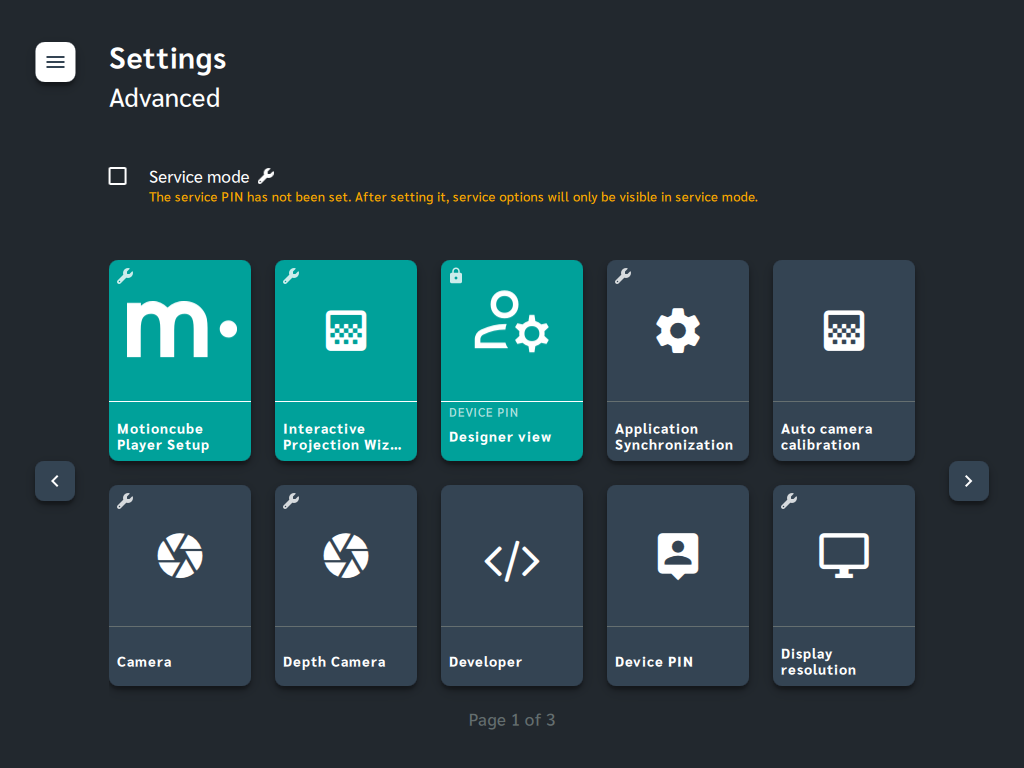
Settings > Advanced
Once the service PIN is defined, service options will be hidden and can only be accessed by entering Service mode (and providing the service PIN).
This approach allows all new users to quickly familiarise themselves with the key options available in Motioncube Player.
Changes in the Calibration Wizard
Recently, we have put significant effort to enhancing the UI and overall UX of the calibration wizard called Interactive Projection Wizard. It has been largely overhauled to be more intuitive while offering greater flexibility.
The refreshed wizard now allows for:
1. Selection of the active configuration (floor / wall / table)
The Player itself can be configured for more than one interactive surface (defined in Player Setup). In the calibration wizard you select the current work mode.

Interactive Projection Wizard: Setup Selection
2. Enabling the Stream Engine
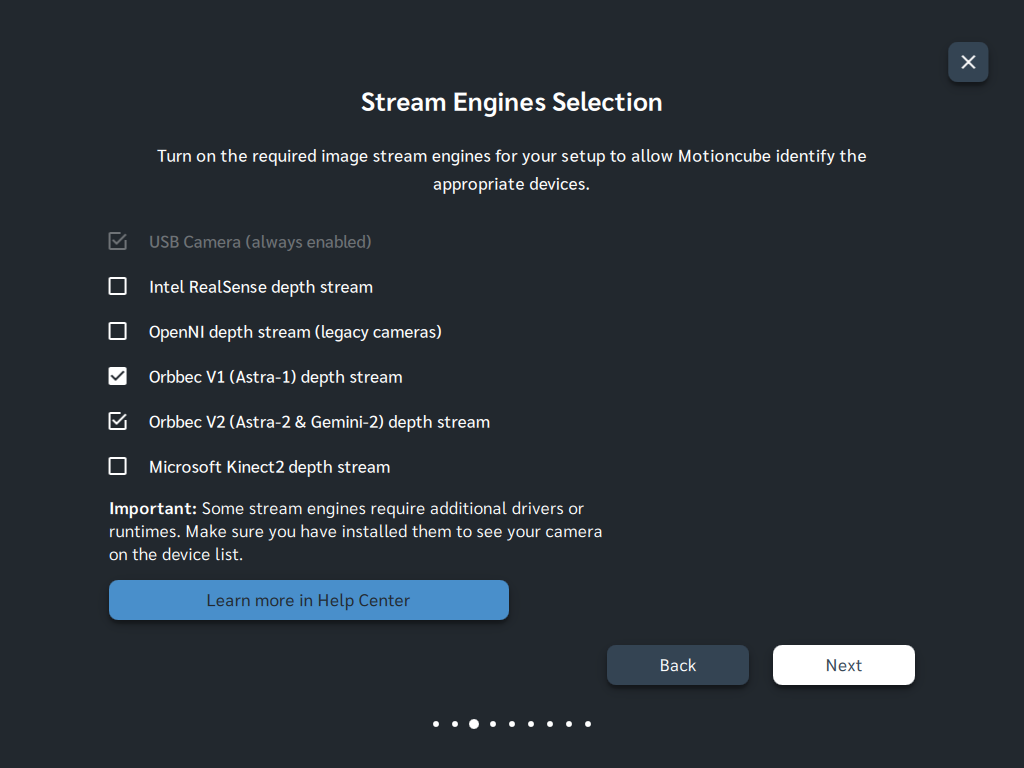
Interactive Projection Wizard: Stream Engine Selection
Turn on the required stream engines for your setup to allow Motioncube identify the appropriate camera devices.
3. Automatic detection of the interaction area
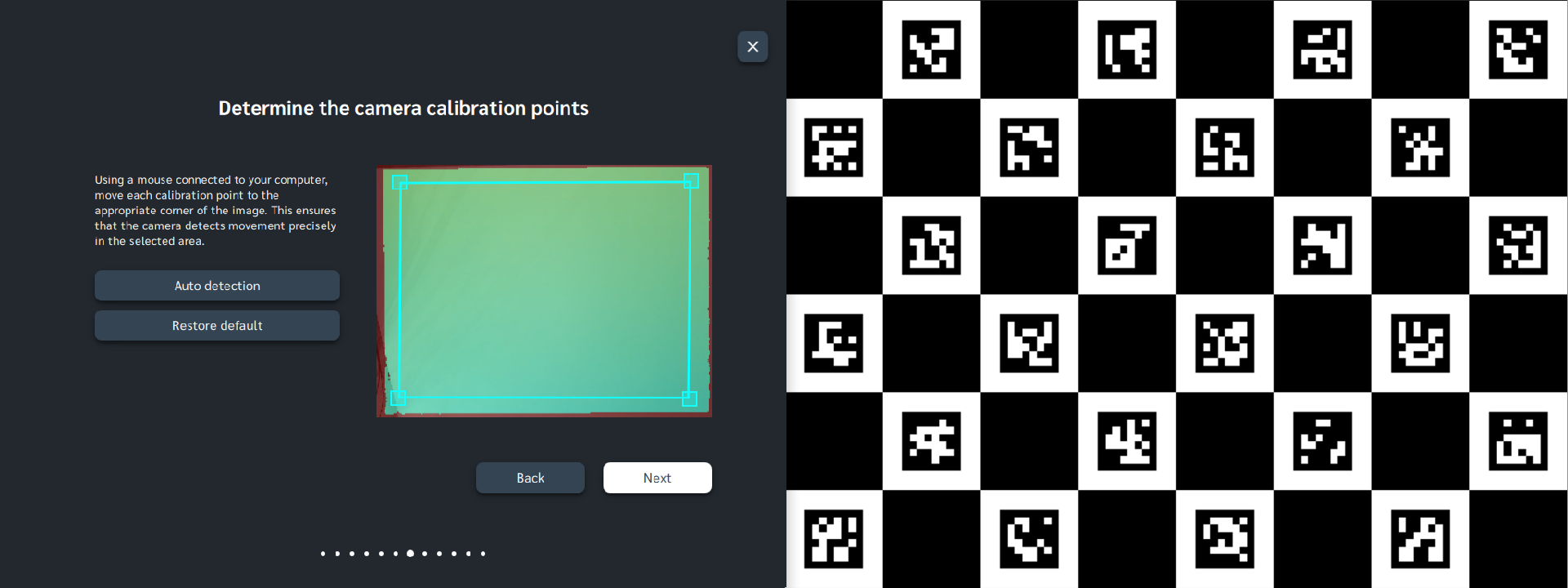
Autodetection of the interaction area using a dedicated chessboard pattern.
4. Choice of motion detection method for depth cameras

Interactive Projection Wizard: Motion Detection Technique
Light blue colour symbolizes the detected object.
5. Improved visualisation of motion detection
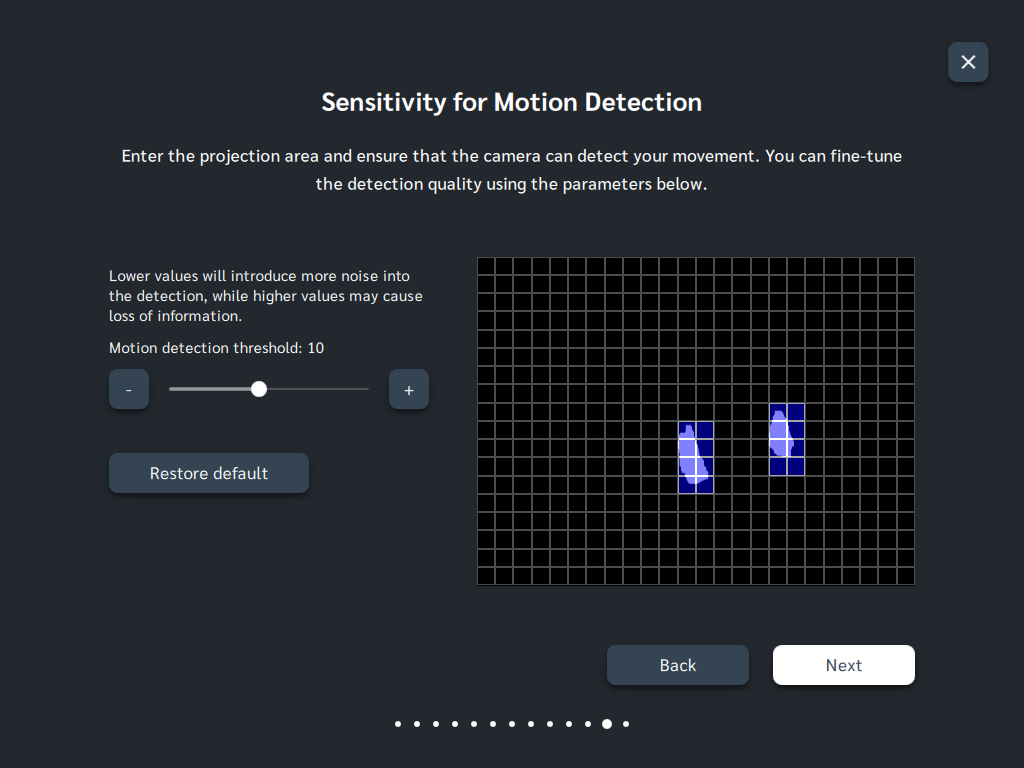
Interactive Projection Wizard: Motion Detection Technique - Diff Frames
Light blue colour symbolizes the detection of motion in this area.
6. Indication of which testers to use and suggestions for free applications to try.
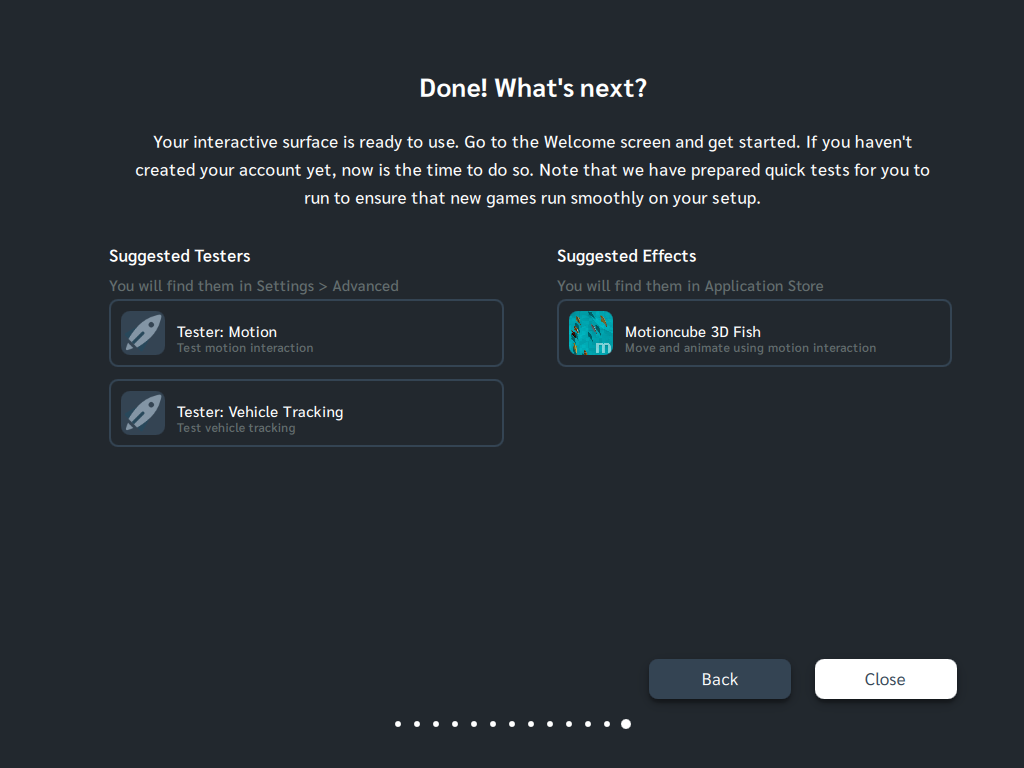
Interactive Projection Wizard: Final screen
All the testers can be found in Settings > Advanced.
